iOS Mobile Testing: Devices, Versions and Release Checks
Learn how iOS mobile testing works across iPhone models, iOS versions, real devices and App Store release checks, with a coverage matrix.
In this article
- Core iPhone and iOS Coverage Matrix
- What to record on every row
- Why iPhones Need Their Own Testing Plan
- Simulators Versus Physical iPhones
- How to Run an iOS Test Session Step by Step
- App Store Review Risks to Test Before Submission
- Pre-submission cases, not checkboxes
- Accessibility Checks Automated Tools Miss
- A short routine that is not a scan
- How the report should read
- Testing Beta and Newly Released iOS Builds
- Decide Your iOS Coverage Before the Next Release
Only 66% of active iPhones ran iOS 26 on February 12, 2026. 24% were still on iOS 18, and 10% used earlier versions, according to Apple's App Store adoption figures reported by Daring Fireball. Among iPhones introduced in the preceding four years, adoption was 74% on iOS 26, 20% on iOS 18, and 6% on older releases. A plan that only exercises the newest SDK skips about a third of active iPhones.
That split is why iOS mobile testing should be an auditable matrix, not one aggregate pass rate. Every device and OS combination you still support gets a status of passed, failed, blocked, or unrun. Residual risk stays visible instead of being inferred from a green build on a flagship.
Core iPhone and iOS Coverage Matrix
Treat OS coverage as a weighted compatibility problem. A regression from an API change, a permission-model difference, a rendering change, or a deprecated framework stays invisible when you execute only against the latest OS. Adoption data should guide how many sessions you spend on each tier. It should not replace your contractual support line or production telemetry.
I would lock five tiers before the first case is written.
Tier 1 is the current major release on the newest iPhone family, where new APIs, permission prompts, and system UI show up first. Tier 2 is the previous major on a current model, because a large share of users have not upgraded. Tier 3 is the oldest iOS your deployment target still supports, on the oldest iPhone you still ship. Tier 4 is one lower-performance supported model on the current OS, where memory pressure, thermal throttling, and slow launches appear. Tier 5 is a beta or newly released build on the newest model you can reach, for the window before users upgrade.
| Coverage tier | iPhone profile | iOS version | Risk it covers |
|---|---|---|---|
| Tier 1: current release | Newest iPhone model | iOS 26 | Defects in newest APIs and permission models |
| Tier 2: previous major | Current iPhone model | iOS 18 | Regressions for users who have not upgraded (24% of active iPhones) |
| Tier 3: oldest supported | Oldest iPhone your deployment target supports | Oldest supported iOS | Compatibility loss in older frameworks (10% on earlier versions) |
| Tier 4: low performance | Lower-performance supported model | Current iOS | Memory pressure, throttling, and slow launches |
| Tier 5: pre-release | Newest model with beta access | Beta or newly released iOS | Breakage before users upgrade |
What to record on every row
For each case, log the device model, OS build, screen dimensions, orientation, locale, and network state. The same script can hit different hardware and system behavior once those fields change. Run high-risk flows on every tier you claim to support: authentication, push notifications, deep links, camera and photo permissions, background refresh, payments, and offline recovery.
A membership product such as the Sports Club App from Vanta Sports is a useful stress case. Sign-in, push, and payments have to be marked on each tier, not assumed from a single flagship pass.
Practical rule: If a cell has no status, it was not tested. Do not fold it into a pass rate.
Read the matrix left to right at release time. Passed means the flow completed on that device and build. Failed means a reproduced defect. Blocked means a missing build, account, or device. Unrun means nobody executed it. The release owner should see the unrun cells, not a single percentage.
Why iPhones Need Their Own Testing Plan
iOS is a fleet from one manufacturer. The hardware range is narrower than Android's, but system updates keep changing how each model behaves. Android testing samples across brands, chipsets, and skins. iPhone testing needs a different discipline, and the market data shows why a defect there is not a niche miss.
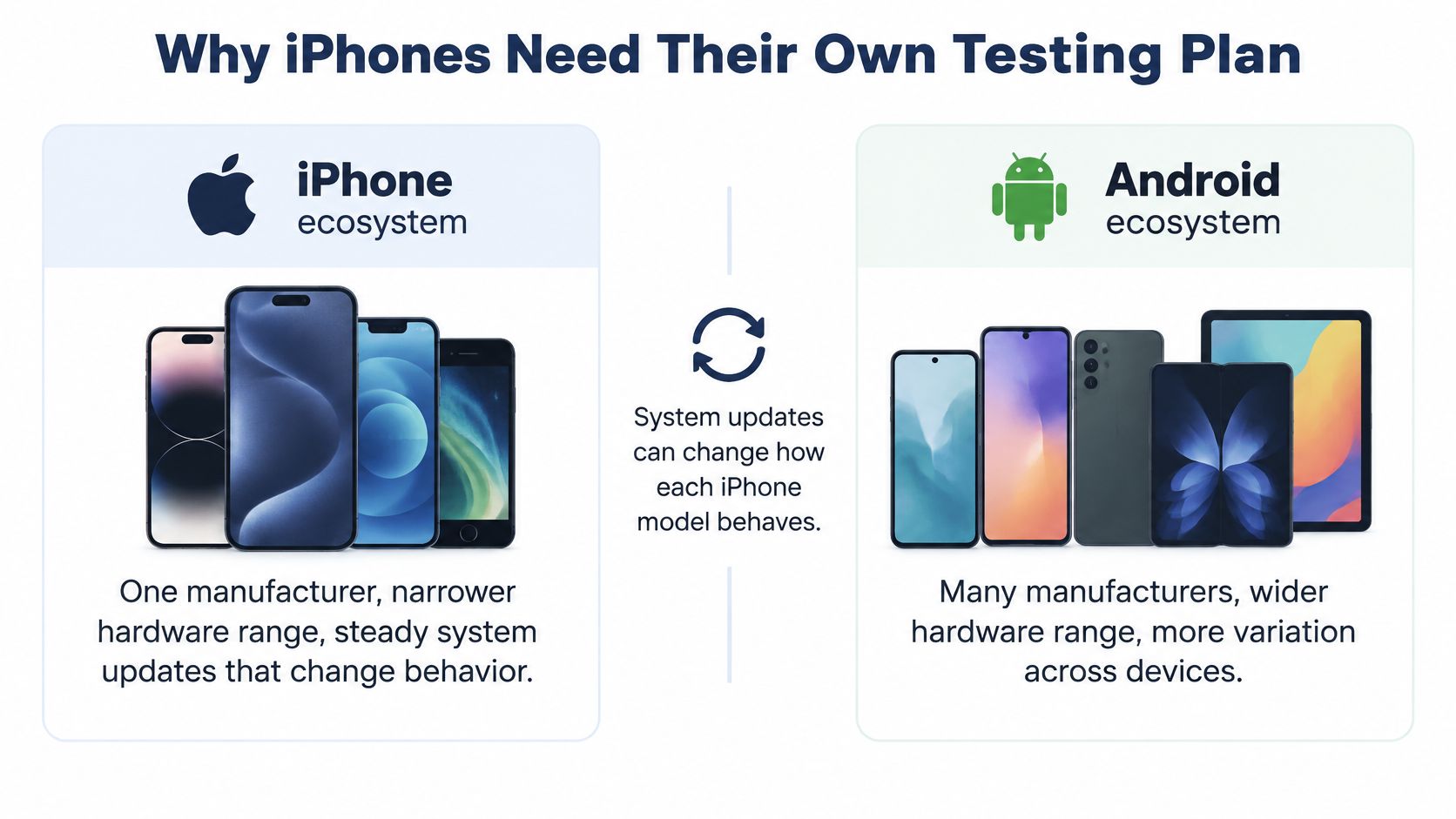
A UK government market study reported that iOS held approximately 26% of worldwide smartphone operating-system share in 2020, compared with 73% for Android. The same study found Apple represented 50–60% of active smartphones in the United Kingdom that year. iOS and Android were the only smartphone operating systems with a material global presence, and their app stores together accounted for more than 90% of native-app downloads in the UK.
An Android result should never stand in for an iPhone result. The app runs inside combinations Apple controls: hardware model, OS version, permission prompts, networking, screen size, and App Store policy. A flow such as recording client calls on iPhone depends on microphone permission, background audio, and iOS policy that a matching Android script will not prove.
Keep explicit iPhone coverage in every release plan. Record which device and OS combinations were exercised, and document the unexecuted cases instead of inferring them from Android runs or a simulator.
Simulators Versus Physical iPhones
A simulator is enough for early layout, navigation, and deterministic logic. It is not enough when the defect depends on hardware timing, background suspension, intermittent connectivity, or resource pressure. A clean simulator run is then a false pass.
| Behavior | Simulator | Physical iPhone |
|---|---|---|
| UI layout and navigation | Good for early checks | Confirms final rendering on real screens |
| Camera, microphone, and sensors | Limited or absent | Full hardware behavior |
| Biometric authentication | Simulated prompt | Real Face ID or Touch ID path |
| Bluetooth accessories | Not reliable | Real pairing and dropouts |
| Cellular handoff and weak signal | Not represented | Wi-Fi to cellular transitions and degraded bandwidth |
| Thermal and battery throttling | Not represented | Performance under sustained load |
| Background suspension and memory pressure | Approximate | Actual system behavior |
Split the work. Keep deterministic automated checks on the simulator. Add manual or instrumented sessions on at least one current iPhone and one lower-performance supported model. The same workflow can fail on a battery-constrained phone that has been running for hours, so run the long session on the slower model before sign-off.
If you don't own a tier, mark those cells unrun. Don't promote a simulator pass into coverage. Our testers run cases on their own Android phones, iPhones, and laptops, on Jio, Airtel, and Vi, which is how a handoff or a weak signal gets a real network instead of a mocked one. The gap between emulator and hardware is laid out in our note on emulator versus real-device testing.
Any defect that names a physical condition, a dropped call, a slow camera, or a heating phone, goes to real hardware first.
Capture the iPhone model, iOS build, app version, network type, signal, battery state, and whether the app was cold-started or resumed. Repeat the failure after a fresh install and after an upgrade, because keychain state, permissions, cache, and migration logic change the outcome.
How to Run an iOS Test Session Step by Step
A session without a named phone, OS, and build cannot be reproduced. Use the same seven moves on every row of the matrix.
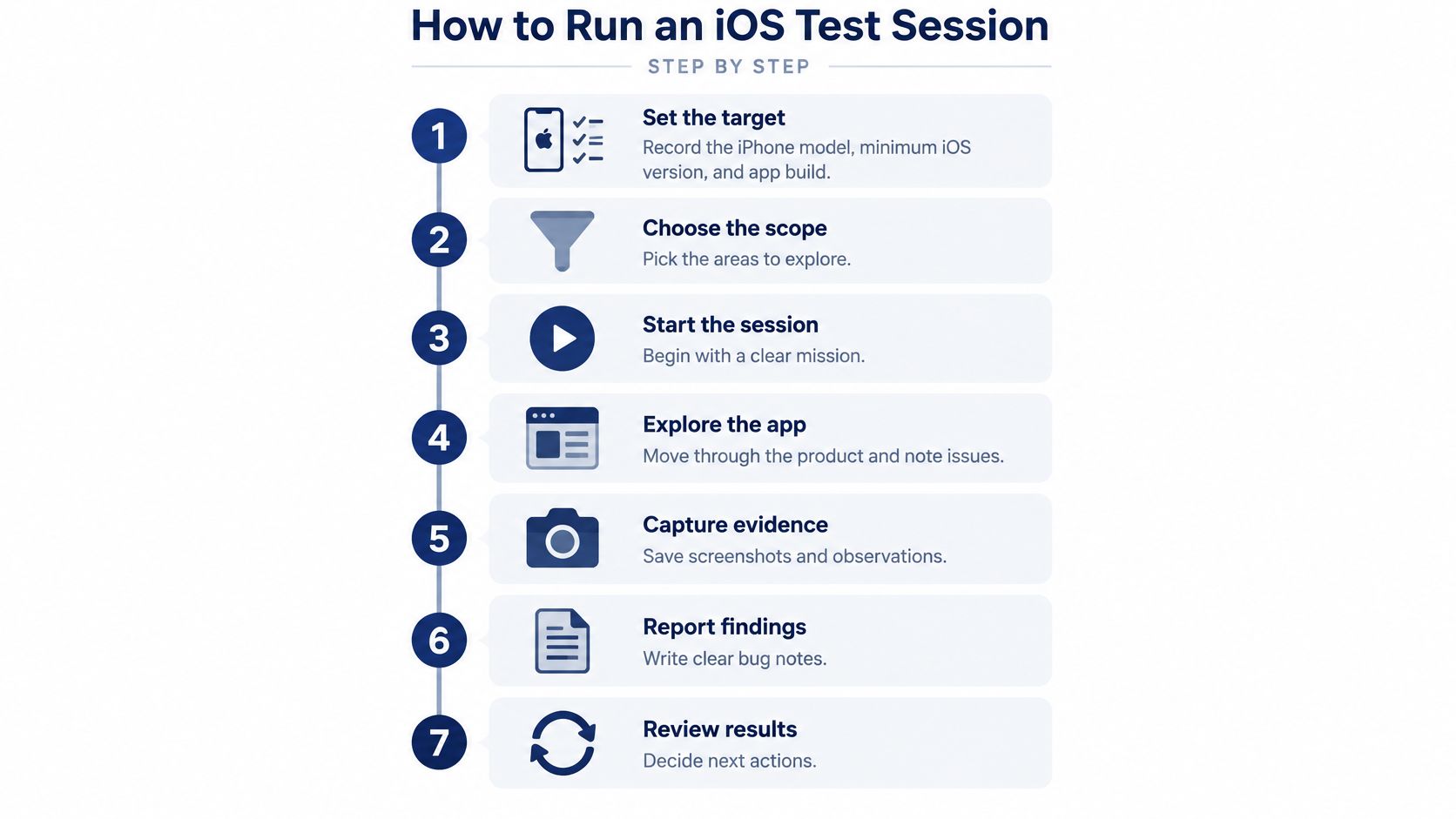
- Set the target. Write down the iPhone model, the minimum iOS version, and the app build before you tap anything. A later bug report that says "iPhone, latest iOS" cannot be matched to a matrix cell.
- Install through the customer channel. Use TestFlight or the web URL customers use. A build that only installs from Xcode hides provisioning and distribution failures.
- Run a fresh install, then an upgrade. Install clean, then upgrade from the previous build. Skipping the upgrade hides migration bugs that only existing users will meet, including keychain and cached data.
- Reset permissions and walk first launch. Clear camera, photos, location, and tracking, then read the purpose text and the stored consent. A prompt that says the wrong thing is a product defect, not a system quirk. SMS codes deserve the same care. See OTP autofill testing on Android and iOS before you sign off sign-in.
- Break the network on purpose. Cover Wi-Fi to cellular handoff, degraded bandwidth, high latency, and a brief loss. A stable office Wi-Fi pass hides the failure that shows up on a train or in a lift.
- Cold-start, then resume. Launch from a killed state, then send the app to the background and bring it back. Suspended apps often fail on restore even when a fresh launch looks fine.
- Log the status with evidence. Timestamps, steps, logs, screenshots or recordings, and the device environment. Mark the case passed, failed, blocked, or unrun. An unrun case with no owner will be treated as a pass in the standup.
The slip on step 3 is rushing a single install because the build "already worked yesterday." The slip on step 5 is treating airplane mode as the only network test. Handoff and latency find different bugs.
This walkthrough shows how a scripted iOS session is paced when you are watching the device, not only the log.
Attach the evidence to the matrix cell, not to a shared folder with no device name. Engineers can then separate an app defect from an OS or network-specific one.
App Store Review Risks to Test Before Submission
A common assumption is that review will catch what your scripts missed. Review is a gate with a known set of rejection categories. It is not a stand-in for a customer's iPhone.
Apple stated in 2021 that its App Review organization examined an average of 100,000 new apps and updates every week with a team of more than 500 dedicated experts, in material filed for a U.S. House Judiciary Committee hearing. Apple also reported rejecting more than 150,000 submissions for spam or copycat behavior, more than 215,000 for privacy-guideline violations, and more than 48,000 for hidden or undocumented features. Those counts don't replace customer-side testing. They show which risks Apple treats as material.
Pre-submission cases, not checkboxes
Functional scripts that only check whether screens load will miss most of this list. Verify each item on real supported devices and store it as a case with a status.
- Permission prompts: Purpose text must match what the build does with the camera, photos, location, or contacts.
- App Tracking Transparency: No tracking across other companies' apps or websites before the user allows it. Consent granted, denied, and not-yet-asked are three different builds of the same screen.
- Privacy disclosures: The nutrition labels and in-app copy have to match the data the binary sends.
- Purchases and restore: Buy, fail mid-payment, restore on a second device, and cancel.
- Authentication recovery: Wrong password, expired session, and sign-in after reinstall.
- Deep links: Signed-in and signed-out targets, including a link that arrives while the app is suspended.
- Background behavior: Refresh, push, and anything that continues after the user leaves.
- Mid-action errors: Kill the network halfway through save, pay, or upload, and confirm the user can recover.
A build can clear review and still fail on a customer's iPhone. Review never saw that model, that OS, or that network.
Independent runs across selected models expose what one simulator configuration misses. Keep the reproduction package, because you will need it before submission and again after an update.
Accessibility Checks Automated Tools Miss
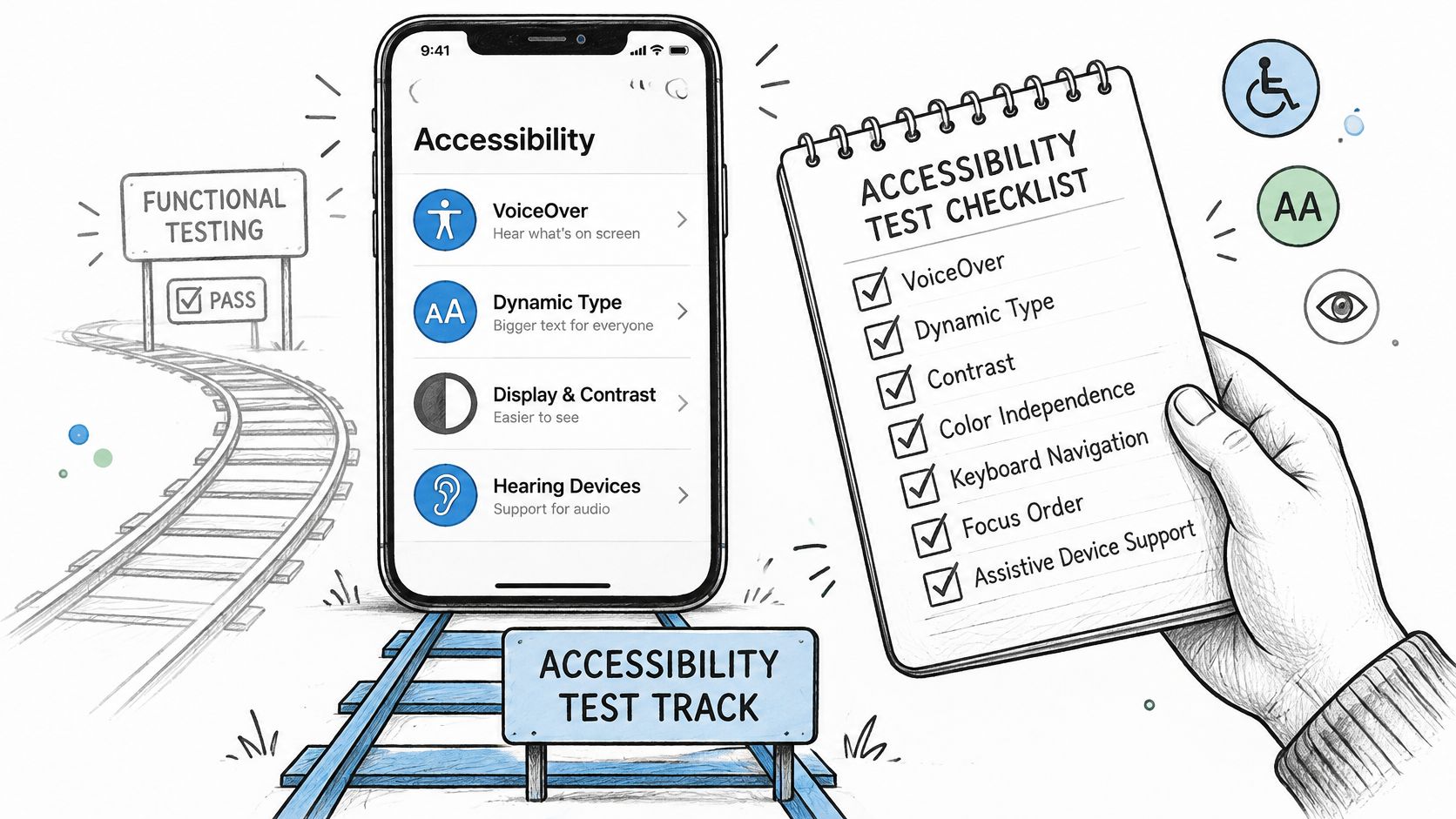
Folding accessibility into a functional pass is how unusable flows get marked green. A case can pass while VoiceOver skips a control, focus order is illogical, dynamic text clips a label, or switch access cannot reach a button.
A practitioner study published via ACM found that 43.14% of respondents used manual accessibility testing, 22.55% used automated testing, and only 13.24% tested with assistive technologies such as screen readers or switches. Just 9.8% involved users with disabilities. Checks typically landed in mid-to-late development rather than continuously.
That gap is the opening for every accessibility defect that reaches production.
A short routine that is not a scan
Run the key flows with VoiceOver on the current iOS tier and on the oldest iOS in your matrix. Check labels and focus order with the screen curtain on, so you are not cheating with vision. Raise the dynamic text size until labels either wrap or clip. Try switch-style navigation on at least one flow that includes a modal and a pay or submit button.
Automated conformance signals stay in their own column of the matrix. Human usability evidence stays in another. A clean scan shows what a parser can detect in the code. It cannot show how a screen reader experiences a flow, so treat scan output as an input to the matrix, never as a passed status on its own.
How the report should read
Accessibility results belong in their own block, with their own statuses. Name the assistive technology and the iOS version beside each result. Mark every device and OS combination that never ran VoiceOver or switch access as unrun or blocked, not as passed. A functional pass on one model says nothing about whether focus reached the submit button on another.
AI-generated cases are especially prone to this gap, because they describe the happy path and never enable a screen reader. Extend them with assistive technology steps by hand, or log them as unrun until a human verifies them. Device-specific manual sessions on real iPhones catch what code-level checks and the simulator do not render the same way.
If you did not run switch access, say so in the report.
Testing Beta and Newly Released iOS Builds
Tier 5 needs its own routine because beta seeds move while the production OS is still the one most users have. Apple announced iOS 26 in June 2025 and made developer testing available immediately. Teams supporting both the shipping OS and the new release are aiming at a moving target. A "latest iPhone" pass still doesn't represent older hardware, screen sizes, thermal state, network transitions, or permission UI.
How alpha and beta testing differ in scope is covered in our guide to alpha testing and beta testing. On iOS, the practical version is narrower.
- Install each beta on the newest iPhone you can reach, through the same channel customers will use once the release ships. A sideload from Xcode is not that channel.
- Run high-risk flows first: sign-in, push, deep links, camera and photo permissions, background refresh, payments, and offline recovery. Leave cosmetic tours until those pass or fail.
- Rerun the same cases on the production OS already in the matrix. A failure that also fails on production is an app bug. A failure that only fails on the beta is a platform change.
- Label every result with the exact beta build number and a beta status. A beta pass must not be readable as production coverage.
- Decide before the public OS ships. If a permission prompt, rendering change, or deprecated framework breaks a flow and no fix lands in time, mark the cell failed and write the workaround or the decision to ship anyway.
- Repeat on each new seed and on the final public release. A fix in one beta can regress in the next.
Say sign-in fails on beta 3 and passes on beta 5. Both build numbers stay in the report so the release owner can see when the risk closed, not only that "beta looked fine."
Decide Your iOS Coverage Before the Next Release
Pick the tiers that match the people who open the app. Check analytics for the share on each iOS version and device class. Keep the minimum supported iPhone and the newest iOS in every plan even when their share looks small. Rank the remaining cells by user share and by whether they exercise sign-in, push, payments, or offline recovery.
Then assign every cell a status and list the cells your own phones cannot cover. Those open cells are the release risk. They don't belong inside an aggregate pass rate.
For each gap, choose one of three moves. Borrow a device for a day. Send the cases to a managed real-device run. Or drop the tier with a written reason the release owner signs. If the oldest supported iPhone is unavailable, borrowing one for upgrade and cold-start tests can close the gap cheaply. Dropping it needs a justification that names the users you are leaving untested.
We validate AI-generated test cases by having human testers execute them on real phones, laptops, and browsers, and we return human-verified pass and fail reports within three business days. That includes real-device and mobile app testing in India, cross-browser testing, exploratory testing, and testing of AI-generated cases, matched to the brands and minimum OS versions you set.
The check before you ship is simple. Every cell has a status. Every unrun cell has a reason and an owner. That is auditable iOS coverage.
If your matrix still has unrun iPhone rows, 99tests can execute the cases you already have, including ones an AI coding tool drafted, on tester-owned iPhones and return a verified pass, fail, blocked, and unrun report. You set the models and minimum iOS, and the sessions run on those real devices rather than a simulator. Start with the cases for your next release at 99tests.