How to Test iOS Apps on Real Devices: A Practical Workflow
Learn how to test iOS apps on real devices, from choosing iPhone and iOS versions to TestFlight setup, bug reports, and coverage gaps.
In this article
- Why Simulator Results Do Not Prove an iOS Release Is Ready
- Treat technical completeness as a release gate
- Ask for evidence that another person can inspect
- Defining a Device and iOS Version Matrix That Holds Up
- Build rows around a reason
- Make exclusions explicit
- Setting Up TestFlight for Real iPhone Testing
- Give testers a release-like build and useful instructions
- Plan for expiry and replacement devices
- Running Test Cases by Hand on Real Hardware
- Exercise journeys across installation states
- Judge the outcome beyond the screen
- Documenting Bugs So Developers Can Reproduce Them
- Record the environment before resetting it
- Test the boundaries of the failure
- Comparing Real-Device Testing Options for iOS Teams
- Use simulators for fast development feedback
- Prefer an internal lab when continuity matters
- Expand selectively when the matrix exceeds the lab
- Measuring Coverage Gaps and Your Next Step
- Report execution and quality separately
- Turn omissions into release decisions
“Test the newest iPhone and the oldest supported iOS” sounds like a sensible release strategy. It isn't enough. That approach can miss failures tied to older hardware running a newer OS, and it says nothing about whether anyone executed the critical journeys.
Learning how to test iOS apps on real devices starts with a different question: what evidence would justify shipping this build? A TestFlight invitation isn't that evidence. A device-specific result, backed by a reproducible record, is.
Why Simulator Results Do Not Prove an iOS Release Is Ready
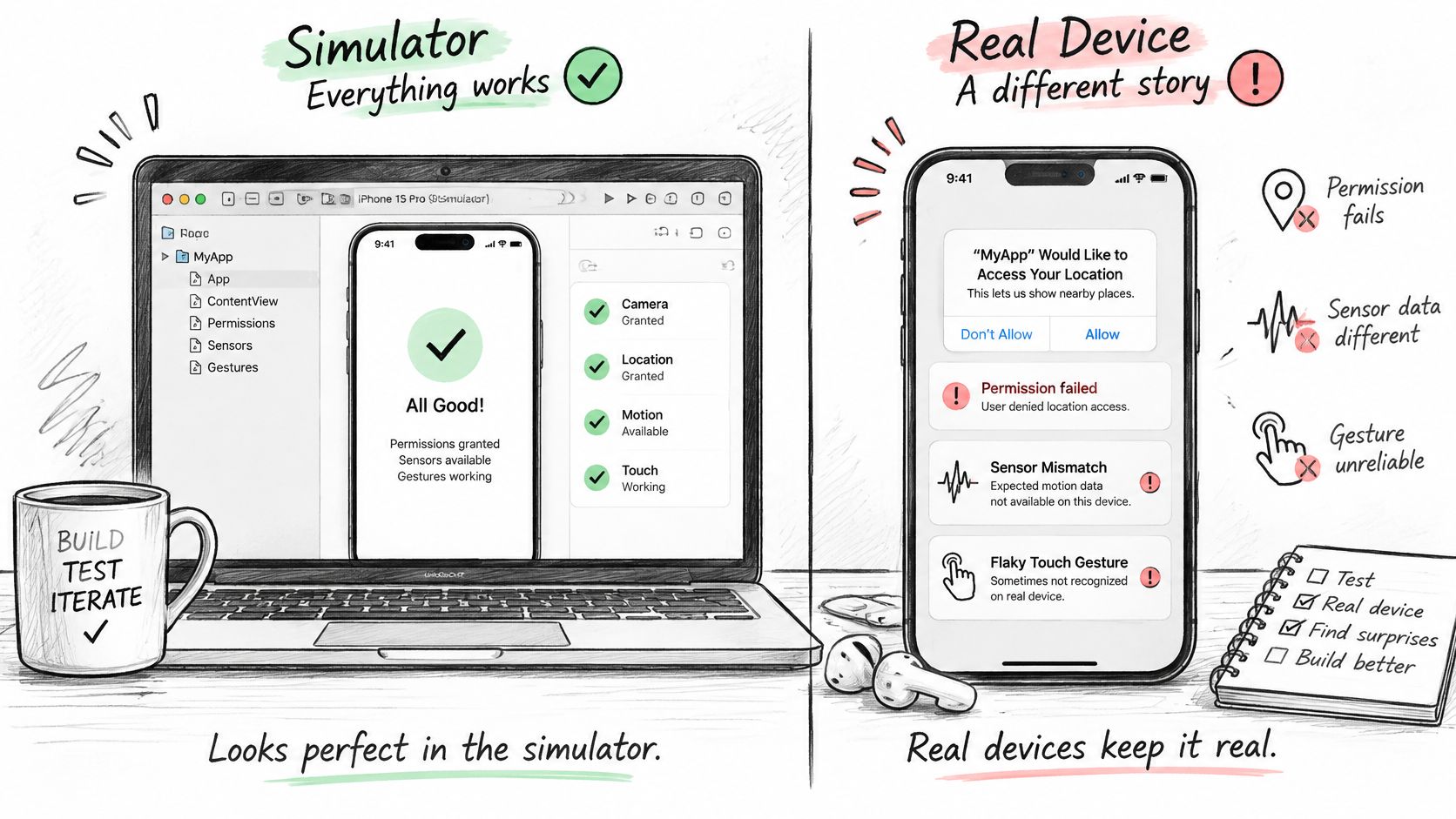
A green simulator run proves that a particular test passed in a simulated environment. It doesn't establish that the same app behaves correctly on a physical iPhone.
That distinction matters when your app requests permissions, reads sensors, switches connectivity, or resumes after backgrounding. Memory constraints and device-specific performance can also expose problems that aren't apparent during simulator testing. Keep simulator results, but don't relabel them as hardware coverage.
The difference is between checking an app's logic and checking its behavior under actual device conditions.
Treat technical completeness as a release gate
Apple's App Review guidance instructs developers to test for crashes and bugs on compatible devices before submission. Incomplete bundles, crashing binaries, and obvious technical problems can lead to rejection. Apple also recommends testing on devices running the latest operating-system software and resolving bugs before submitting.
That makes physical-device validation a release prerequisite, not an optional enhancement after the important testing is finished. Launch stability and reliable core flows belong in the acceptance criteria.
Release rule: A simulator pass can't close a test whose risk depends on physical hardware.
Consider authentication. Reaching the signed-in screen isn't enough if a permission change leaves the next launch stuck. Likewise, a payment confirmation screen doesn't settle whether the app preserved the correct state after a connectivity interruption.
Ask for evidence that another person can inspect
For mobile developers, QA leads, and release managers, the useful output isn't “works on my phone.” It's a record that identifies the environment, the action, the expected outcome, and the observed outcome.
A defensible release decision needs:
- A selected device matrix: Explain why the chosen hardware and OS combinations matter.
- Executed journeys: Distinguish completed tests from planned or generated cases.
- Investigable failures: Preserve enough context for a developer to reproduce the problem.
- Visible gaps: Name combinations and cases that nobody tested.
This also changes the conversation when a developer can't reproduce a bug. Instead of debating whether the failure is real, the team can compare environments and repeat the recorded conditions.
Defining a Device and iOS Version Matrix That Holds Up
Choose devices by market coverage and risk coverage. They answer different questions.
Market coverage asks which iPhones and iOS versions your customers use. Risk coverage asks which supported combinations are most likely to expose a serious failure. A popular configuration deserves attention, but so does an older supported phone that exercises tighter hardware constraints.
Apple's historical adoption figures illustrate why “most users upgraded” isn't a complete compatibility argument. As of June 4, 2025, iOS 18 ran on 88% of iPhones introduced during the previous four years, compared with 82% of all active iPhones, according to the published summary of Apple's App Store adoption data. Treat those figures as historical context, not a current device inventory.
Build rows around a reason
Start with your supported deployment range, customer telemetry, and crash records. Then select hardware and software combinations that test distinct risks. Don't buy or recruit another phone merely because its model name is missing from a spreadsheet.
Sample Device and OS Matrix Rows
| Device class | iOS version | Risk it covers |
|---|---|---|
| Recent mainstream iPhone | Dominant OS among your customers | Primary journeys on a representative customer configuration |
| Older supported iPhone | Same dominant OS, where compatible | Hardware-generation differences without changing the OS target |
| Compatible mainstream iPhone | Meaningful previous supported OS | Behavior associated with the earlier software baseline |
| Oldest compatible supported iPhone | Minimum supported OS | Lower boundary of the app's support commitment |
| Lower-cost iPhone represented in customer telemetry | Supported OS actually installed | Budget-sensitive customer conditions and selected network risks |
These are planning categories, not claims that particular combinations are available. Replace them with exact device models and installed iOS builds before scheduling execution.
For India-focused or global releases, use actual customer evidence to choose lower-cost hardware and relevant network conditions. Don't assume every market needs the same matrix. An app that depends on camera capture needs different risk emphasis from one centered on background activity.
Make exclusions explicit
Attach a purpose and an execution status to every selected row. Keep omitted combinations in a separate gap register rather than deleting them from the plan.
- Untested target: Record the model and OS combination you intended to cover.
- Reason: State whether hardware was unavailable, access failed, or time ran out.
- Exposure: Name the journeys affected by the gap.
- Decision: Assign an owner to accept the limitation or schedule follow-up testing.
A narrow matrix with honest exclusions is more useful than a broad matrix that implies execution nobody performed.
Setting Up TestFlight for Real iPhone Testing
TestFlight distributes builds. It doesn't prove coverage. Assign each tester a target environment and a defined set of cases before sending invitations.
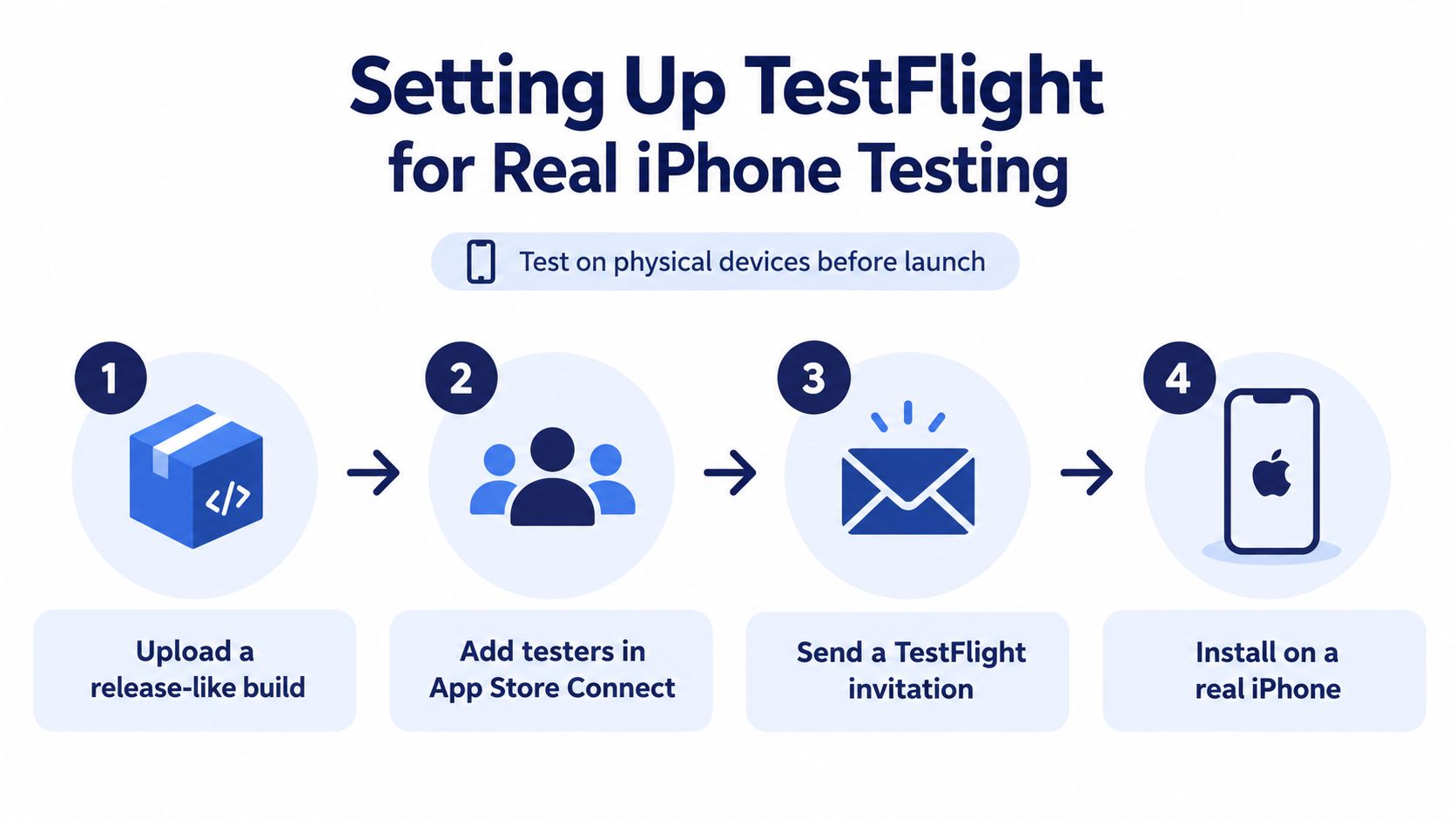
Use this setup sequence to connect installation access with a test assignment.
Give testers a release-like build and useful instructions
Upload the release candidate to App Store Connect and identify it unambiguously in the test plan. Avoid a handoff where the tester knows only that they're using the latest beta. “Latest” becomes ambiguous as soon as another build is available.
TestFlight instructions should describe the features, conditions, and expected results. “Check checkout” isn't an executable instruction. Specify the account state, payment test conditions, connectivity changes, and evidence required if the flow fails.
- Build access: Identify the intended build and confirm that the tester can install it.
- Assignment: Map the tester's declared iPhone and iOS build to the planned cases.
- Session identity: Record the build, device, OS, network, and account used.
- Installation state: Distinguish successful installation from access problems or unavailable builds.
Invite testers only after those details are ready. Otherwise, you'll collect activity without knowing whether it answers the release questions.
Plan for expiry and replacement devices
Apple's TestFlight overview states that builds remain testable for up to 90 days, supports up to 10,000 external testers, and allows testers to access beta builds on up to 30 devices. Those limits affect long regression cycles and distributed testing, even when your cohort is much smaller.
A regression cycle can outlast the build's availability. A tester who replaces a phone needs installation access on the replacement, but the new handset doesn't inherit evidence from the old device.
Preserve the original build identifier when a replacement candidate becomes available. Mark findings awaiting verification against the replacement rather than assigning old results to it.
A larger invitation list isn't a stronger release record unless testers complete assigned cases on the intended environments.
The setup demonstration below complements the operational checklist.
Before execution begins, reconcile invitations with actual installation status. A tester who accepted an invitation but couldn't install the requested build represents a blocked session, not completed coverage.
Running Test Cases by Hand on Real Hardware
Consider a planned checkout session on an assigned iPhone. The tester starts by confirming the environment and account state, then follows the clean-install path. This is a worked example, not a reported customer result.
On first launch, the tester checks the expected permission behavior and signs in. They add an item, interrupt connectivity during submission, restore the connection, and inspect the resulting state. The question isn't whether the interface recovered. It's whether the app completed the intended transaction without inconsistent data.
Exercise journeys across installation states
Retain a previous app release so the tester can also exercise the upgrade path. An upgrade test should begin with meaningful existing state, such as a signed-in account or saved preferences. Installing the new build over an empty app doesn't adequately represent that journey.
Apple's Xcode testing guidance warns against relying only on a development-provisioned device or simulator because devices and OS releases differ. Use that distinction to structure the execution plan:
- Installation and identity: Cover installation, upgrade, first launch, authentication, and permissions.
- Lifecycle and connectivity: Exercise offline and online transitions, backgrounding, push notifications, and deep links.
- Feature behavior: Include payments, rotation, localization, and low-storage behavior where relevant.
Run applicable cases under both clean-install and upgrade conditions. Repeat nondeterministic flows, such as notification arrival or connectivity recovery, rather than treating an isolated success as reliable behavior.
Judge the outcome beyond the screen
For the checkout example, verify the expected UI, persisted app data, backend result, and behavior after relaunch. A pass requires agreement across those observable outcomes. If the tester lacks access to a required backend check, record that limitation rather than guessing.
Use distinct statuses:
| Status | Meaning |
|---|---|
| Pass | Required checks completed and matched the expected result |
| Fail | An observed result contradicted the expectation |
| Blocked | A prerequisite prevented execution or required verification |
| Unrun | The tester didn't attempt the case |
Include a reason for blocked and unrun cases. A payment-service outage and an unfinished assignment require different follow-up.
This is especially important when the plan comes from an AI coding tool. Guidance on how to test AI-generated test cases helps separate case authoring from execution: a well-written scenario still needs an observable result on the assigned hardware.
Keep exploratory observations alongside the scripted results. Don't replace the original case outcome with a general session summary.
Documenting Bugs So Developers Can Reproduce Them
A bug report should let a developer reconstruct the failure without interviewing the tester. Start by reproducing it on the original iPhone before changing permissions, reinstalling, or moving to another device.
Capture the conditions while they're still known. Reinstallation may change the state that made the failure possible, so preserve evidence before using it as a diagnostic step.
Record the environment before resetting it
Use the same reporting checklist across testers.
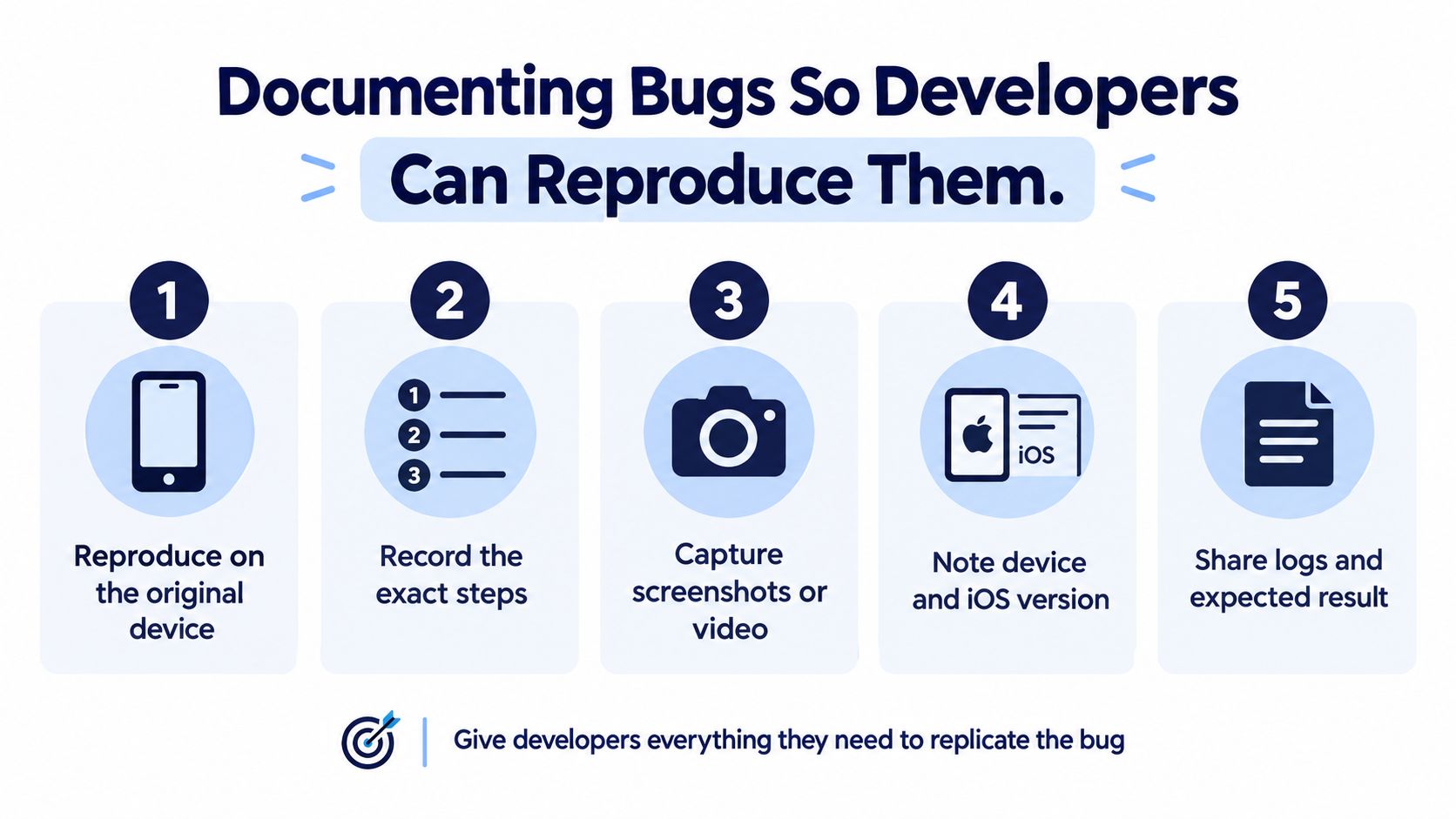
- Build and hardware: Include the app build number, exact model identifier, and iOS version or build.
- Operating conditions: Record connectivity, battery or low-power state, permissions, locale, and relevant account state.
- Reproduction steps: Start from a named state and describe actions in order.
- Expected and actual results: Identify the mismatch without guessing its cause.
- Supporting evidence: Attach a screenshot or recording, relevant logs, and the observation time.
Apple's TestFlight feedback documentation describes build- and device-filtered feedback, screenshots, comments, crash details, OS information, and session and crash metrics. Reconcile those records with the manual report instead of treating a tester's comment as the entire finding.
Test the boundaries of the failure
Repeat after relaunch, then after reinstall, preserving separate outcomes. Verify on another device or OS version before triage when available. A failure restricted to the original environment is still valid, but its scope is different from a failure reproduced across targets.
Keep observation separate from diagnosis. If a request stalls, report the stalled request and visible state. Don't call it an app crash unless the evidence supports that classification.
A cross-platform comparison shows why this discipline matters. In our testing, MIUI and ColorOS killing backgrounded apps by default is the most common S1 finding, and it doesn't reproduce on an emulator. Those are Android environments, not iOS behaviors, so that diagnosis must never be copied into an iPhone report.
For an iOS background-resume failure, document what happened on the actual iPhone: the app's state before backgrounding, the interruption, the return path, and whether data survived. Investigate the cause from that evidence.
Triage shortcut: A precise boundary, such as failure after upgrade but not after clean installation, is more actionable than an unsupported explanation.
End the report with reproduction outcomes and remaining unknowns. Developers need to know both what the tester established and what still requires investigation.
Comparing Real-Device Testing Options for iOS Teams
Choose the testing method according to the question you need answered. A simulator, an internal device lab, and crowdsourced manual execution serve different parts of a release process.
For planning purposes, compare them by hardware access, evidence, staffing, and the consequences of leaving gaps. Don't evaluate them only by how quickly someone can launch the app.
| Option | Hardware coverage | Evidence to expect | Main effort or limitation |
|---|---|---|---|
| Simulator | Simulated configurations | Development checks and simulated results | Physical-device risks remain unresolved |
| In-house device lab | Phones the team owns and maintains | Repeatable investigation on controlled hardware | Procurement, upkeep, and staff availability |
| Crowdsourced real-device execution | Requested targets that available testers own | Assigned-case outcomes and device-specific findings | Access preparation, target matching, and verification |
Use simulators for fast development feedback
Keep simulators in the development loop for checks that don't require physical hardware evidence. They're useful for narrowing a problem before a device session and for checking changes while developers work.
The mistake isn't using a simulator. It's asking its results to answer a question outside the tested environment. Keep that boundary visible in release reporting.
Prefer an internal lab when continuity matters
An in-house lab suits teams with stable device requirements and developers who need frequent access to the same hardware. It also makes sense when a difficult defect requires repeated investigation under controlled conditions.
The trade-off is responsibility. Someone must maintain the devices, preserve relevant test states, schedule access, and execute the work. Owning a phone doesn't guarantee that the release plan has been run on it.
Expand selectively when the matrix exceeds the lab
Crowdsourced execution fits releases that need additional hardware or tester availability without expanding a permanent lab. Define the missing targets first, then allocate cases to those targets. Unstructured exploration alone won't close a specific compatibility gap.
At 99tests, we provide human execution on tester-owned devices, matching testers to requested device brands and minimum operating systems. Our reports connect case outcomes with device and OS-build details and document blocked or unrun cases. This is manual testing, not test automation, a security test, or certification.
A mixed approach is often the practical choice: retain fast development checks, investigate on internal hardware, and allocate external sessions to explicit gaps. Judge the combination by the evidence it produces, not the number of methods involved.
Measuring Coverage Gaps and Your Next Step
Build the release report around case-by-device outcomes, not tester attendance. A session proves someone participated. A coverage record shows which release questions they answered.
Calculate executed coverage as executed cases divided by planned cases for each device and OS target. Define executed cases consistently as those with completed pass or fail outcomes. Keep blocked and unrun cases visible outside that numerator.
Report execution and quality separately
Coverage isn't a quality score. A thoroughly executed plan can reveal an unacceptable build, while a high pass rate can conceal a largely unexecuted plan.
Track these measures alongside coverage:
- Pass rate: Define the denominator and distinguish passing results from incomplete work.
- Reproducibility rate: Record which reported failures could be repeated under their documented conditions.
- Crash-free sessions: State the build and session population represented by the metric.
- Blocked work: Group access, environment, account, and service blockers so owners can act.
Don't collapse every target into an overall result. Show which critical journeys remain untested on the minimum-supported environment, and which apparent gaps affect only lower-priority cases.
Turn omissions into release decisions
For each untested combination, list the affected cases, reason, owner, and next action. Distinguish accepted release risk from work that hasn't been scheduled. If a target becomes unavailable, don't substitute another device without recording the change.
Prepare the next round with a test-case file, a TestFlight public link, requested device targets, minimum OS, and a deadline. For a broader mobile release, keep the Google Play internal testing link with the Android assignment rather than mixing access instructions into the iOS plan.
After payment, submit that material and testers start within the hour. Every report includes a one-click re-run of the same plan on a new build, using the same devices and cases to verify the fix.
The useful stopping point isn't “testing finished.” It's a release decision backed by completed checks, reproducible failures, and named limitations.
99tests offers manual testing of your iOS app on tester-owned iPhones, with device-specific results and reproducible findings. Visit 99tests with your TestFlight build, test cases, device targets, and deadline to turn your next real-device round into a reviewable coverage record.