How to Test an App on Real Devices Without Guesswork
Learn how to test an app on real devices, from picking a device matrix and setting up builds to running smoke tests and writing reproducible bug reports.
In this article
- Why Emulators Alone Leave Release Gaps
- What Physical Hardware Changes
- Selecting Devices and Preparing Builds for Testing
- Building the Three Tiers
- Installing the Exact Candidate Build
- Running Smoke Flows on Each Device
- The Core Sequence
- Run It Twice Under Different Networks
- Tracking Coverage and Residual Risk
- Making the Gate Explicit
- Writing Bug Reports Developers Can Reproduce
- The Reproduction Checklist
- Keeping Severity and Duplicates Consistent
- Choosing In-House Testing or a Managed Service
- What a Managed Option Changes
- Turning the Workflow Into Your Next Release Check
- Your Next Step This Week
Your release candidate is green in CI, the emulator run passed, and someone's already asking if you can ship today. Then a tester opens the same build on a mid-range phone at home, taps pay on a patchy connection, and watches it crash. That gap between a clean virtual pass and a real user failure is exactly where teams lose release days. Learning how to test an app on real devices without guesswork means turning that gap into evidence you can defend.
Why Emulators Alone Leave Release Gaps
A familiar pattern looks like this. The build installs cleanly on an emulator, login works, checkout completes in seconds, and screenshots look crisp. On a budget Android phone, the same flow stutters under low memory, the payment page reloads after the app returns from the background, and the user never reaches confirmation. Nothing in the emulator log predicted it.
That's not an emulator failure. It's a scope problem. Emulators are fast and useful for early functional checks, layout sanity, and repeatable regression during development. They don't faithfully reproduce what ships in a customer's pocket.
What Physical Hardware Changes
Real phones add layers you can't simulate credibly. OEM software alters permission dialogs, background limits, and default browsers. Battery-management policies kill or defer background work that runs happily on a virtual device. Cameras, sensors, fingerprint hardware, and actual GPU performance behave differently under load, heat, and low memory.
Carrier networks change the picture too. A flow tested on stable office Wi-Fi can fail when packets drop, connections switch, or latency spikes during an upload or payment. Android guidance on what to test places integration and end-to-end tests in a directory intended to run on real or virtual devices, which reflects that final confidence needs more than isolated checks.
- Emulators hide OEM behavior: Manufacturer skins and preinstalled components can change dialogs, storage, and notification handling.
- Emulators hide resource pressure: A low-memory device may discard activities or terminate processes that a virtual device keeps alive.
- Emulators hide network reality: Carrier conditions and Wi-Fi switching expose retry, timeout, and recovery flaws.
Don't let a simulator-only pass ship a payments flow, and don't treat a simulator-only failure as final proof without checking hardware.
Real-device testing becomes necessary, not optional, when your app touches payments, camera capture, push notifications, background work, biometrics, or offline recovery. It also matters when a large share of users runs older OS versions or lower-cost hardware that your team doesn't use daily.
A credible release gate therefore isn't "the emulator passed." It's zero unresolved blocker or critical defects, successful completion of all Tier 1 smoke cases on real devices, and a documented reason for every blocked or unexecuted case. That standard forces a useful question. What did you prove, on which devices, under which conditions?
Selecting Devices and Preparing Builds for Testing
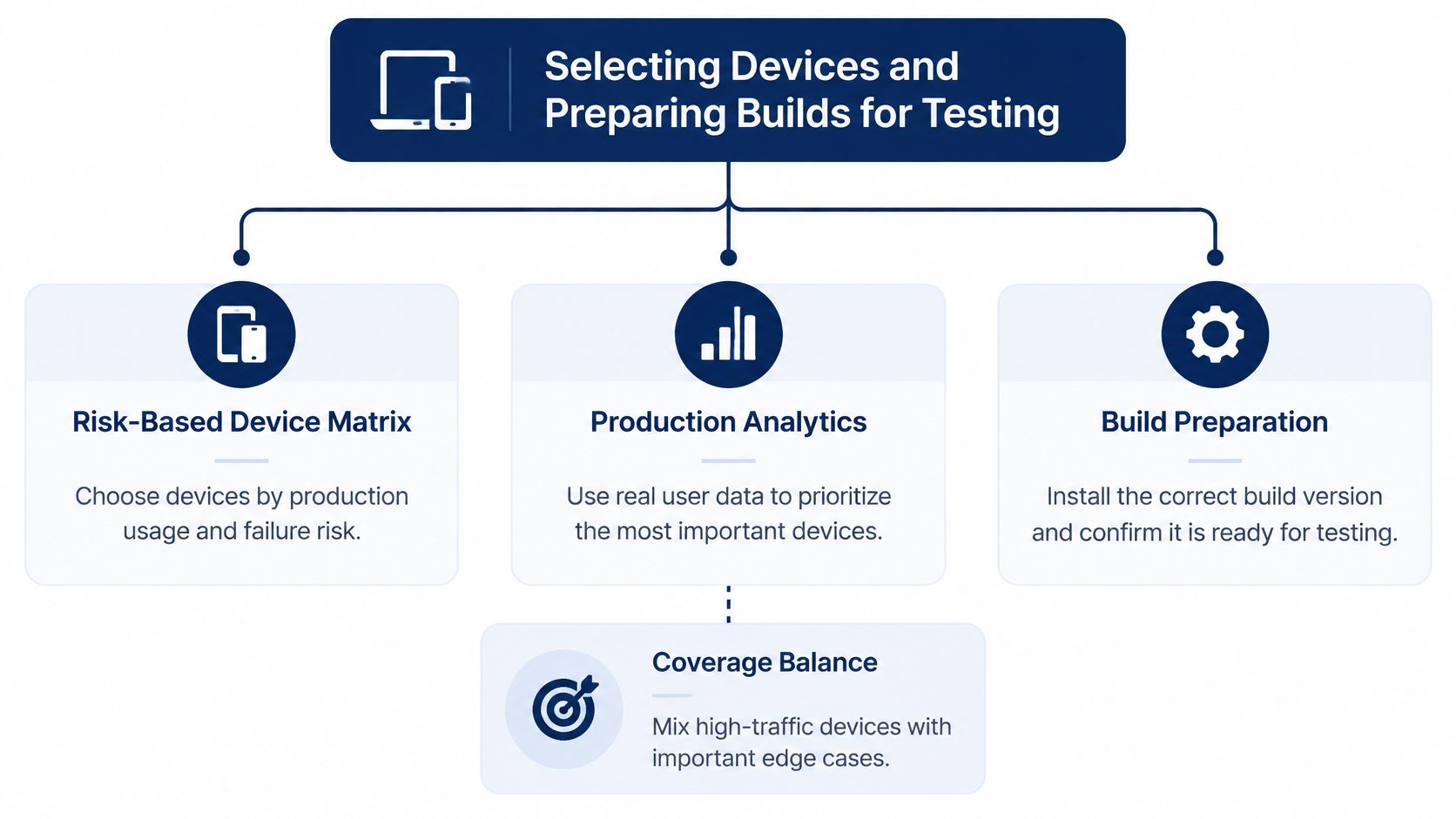
Start with your users, not with the phones in a drawer. Arbitrarily picking popular flagships feels thorough, but it often misses the devices where crashes, slow rendering, and failed installs concentrate. A risk-based device matrix uses production data to decide what earns a slot.
Segment production analytics by manufacturer, model, operating-system version, screen size, and region. Add crash concentration, revenue or conversion impact, and your OS support policy. A model with modest share but a disproportionate share of payment failures deserves attention. A region that's strategically important deserves representation even if its current volume is smaller.
Building the Three Tiers
Group the result into three tiers so the team knows what must pass and what is risk-reducing but not gating.
- Tier 1 devices: These cover the largest user share and your customer-critical workflows. Every smoke case must complete here before release.
- Tier 2 devices: These represent strategically important or budget segments, including lower-memory Android phones common in price-sensitive markets.
- Tier 3 devices: These are edge cases such as tablets, foldables, and older OS versions where you still claim compatibility.
This hierarchy also helps when time runs short. You don't cut randomly. You protect Tier 1, sample Tier 2 by risk, and state plainly which Tier 3 combinations weren't run.
The diagram below maps how analytics, tiering, and build preparation fit together before execution starts.
Installing the Exact Candidate Build
Test the build you'll ship, installed the way users will get it. A debug build sideloaded from a laptop can hide signing, entitlement, and upgrade problems. Use a production-like distribution path instead, such as TestFlight for iOS, Google Play internal testing, or a controlled APK link when that's your release channel.
Apple guidance on testing apps on devices advises testing across a variety of devices and operating-system versions, noting that a simulator or a single development-provisioned device is insufficient. It also recommends retaining prior releases for compatibility testing, which matters because upgrade failures only appear when the old version is present.
For iOS and cross-platform releases, cover every supported device class and at least one prior OS version where compatibility is claimed. Keep the previous release installed on some devices so testers can run genuine upgrade paths, not just fresh installs. Frequent misses here include missing TestFlight prerequisites, stale cached data from an older build, and assuming notification entitlements match the development build.
Before anyone starts, record the app version, build number, OS build, and installation source for each device. If two testers report different behavior, that record tells you whether they even ran the same candidate. Good How to Test an App on Real Devices practice begins before the first tap, with a matrix you can justify and a build you can identify.
Running Smoke Flows on Each Device
Run the same versioned smoke flow on every selected real device. "Versioned" matters. When the flow changes mid-cycle without a note, results from Monday and Wednesday stop being comparable. Give the smoke pack a name and version, then freeze it for the release candidate.
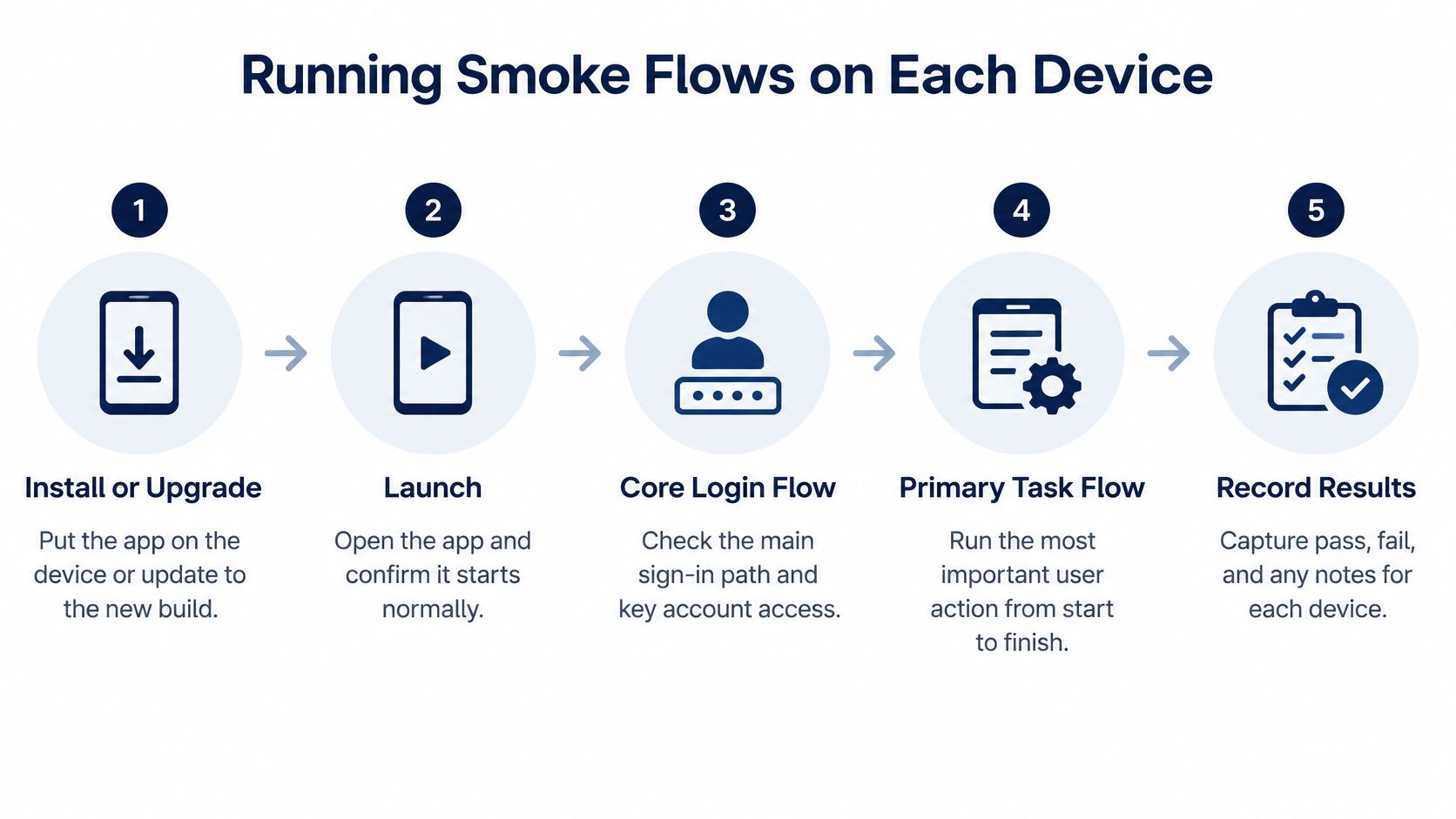
The flow below gives a compact view of the core sequence before you add device-specific checks.
The Core Sequence
Work through installation or upgrade, launch, authentication, and your core transaction first. That transaction might be a payment, booking, upload, or message send, but it must be the action users value most. Sign in with both a fresh account and an existing account, because onboarding state and saved credentials follow different paths.
Then stress the transitions that emulators smooth over. Background the app during a long operation and return to it. Lock and open the device. Rotate where rotation is supported. Grant and deny each permission independently, including notifications, camera, location, and storage, and confirm the app degrades gracefully when access is refused.
- Install or upgrade: Confirm a clean install and an upgrade from the previous release both preserve expected data.
- Launch and authenticate: Check cold start, login, logout, and session restore after the app is killed.
- Complete the core transaction: Run it end to end, including confirmation and any backend receipt or status.
- Interrupt deliberately: Test background and foreground transitions, push notifications, deep links, and offline recovery.
- Uninstall and reinstall: Verify what survives, what clears, and whether the fresh-install path still works.
Exercise deep links and notifications from outside the app, not from an in-app button. Interrupt network connectivity during uploads and payments, then restore it and check whether the app retries, duplicates, or loses the operation. Permission-denial states deserve explicit cases, because users deny permissions every day and unsupported denial paths often trap them in dead ends.
The walkthrough below is useful for seeing how a structured device session looks in practice before you brief testers.
Run It Twice Under Different Networks
Run each scenario at least twice, once under normal Wi-Fi and once under a constrained or switching network. A single pass on office Wi-Fi proves little about a commuter moving between Wi-Fi and mobile data. Note the network type, carrier or Wi-Fi condition, and battery state for each run.
When something fails, repeat it on the same build before filing. Then verify it on a second device of the same OS family. That second run separates an application defect from device-specific behavior, an OEM quirk, or a damaged test handset. Don't report a pass merely because the main path works once. The value of real devices is in the interruptions, denials, and recoveries that surround the happy path.
Tracking Coverage and Residual Risk
A pile of pass and fail notes isn't coverage evidence. Release managers need to see, at a glance, which case ran on which device, what happened, and what's still unknown. That's the job of a case-by-device record.
Classify every cell as passed, failed, blocked, or unrun, with a reason for anything that isn't passed or failed. "Blocked" without a reason hides whether the build wouldn't install, a test account lacked access, or a device never became available.
| Status | Meaning | What to Record |
|---|---|---|
| Passed | The case completed as expected on that device | Device model, OS build, app version, network, timestamp |
| Failed | The case ran and produced wrong behavior | Bug link, reproduction steps, logs or recording |
| Blocked | The case couldn't proceed due to an external obstacle | The blocker, owner, and what's needed to unblock |
| Unrun | The case wasn't attempted in this cycle | Reason, risk accepted, and who accepted it |
Making the Gate Explicit
Define the release gate before results arrive, not after. A practical gate is zero unresolved blocker or critical defects, successful completion of all Tier 1 smoke cases, and documented explanations for every blocked or unexecuted case. If a Tier 1 case is blocked, the gate isn't met, whatever the overall pass rate says.
Then write down residual risk. State which device families, OS versions, or hardware capabilities remain untested and why. Mobile-first testing guidance on device prioritization frames matrix planning around inputs such as active-device distribution, crash concentration, revenue or conversion impact, regional distribution, and OS support policy, then mapping each device to specific cases. That same discipline applies to reporting the gaps.
Practical rule: An honest "unrun, foldable layout not checked, risk accepted by release manager" is more useful than a silent blank that readers mistake for a pass.
This evidence habit also helps when test cases arrive from new sources. If you're evaluating generated cases, the same case-by-device logic shows whether they were ever executed. The discussion of how to test AI-generated test cases makes a useful companion, because a case that exists on paper but never ran on a device contributes no release evidence.
Residual risk isn't an admission of failure. Every matrix leaves combinations untested. The failure is hiding them. A signed-off gap lets product, engineering, and QA share the same picture of what shipping means.
Writing Bug Reports Developers Can Reproduce
A developer who can't reproduce your bug can't fix it, and "app crashed on payment" isn't a report. It's a rumor. Strong real-device bug reports give the exact context that made the failure happen on that handset, at that moment, on that network.
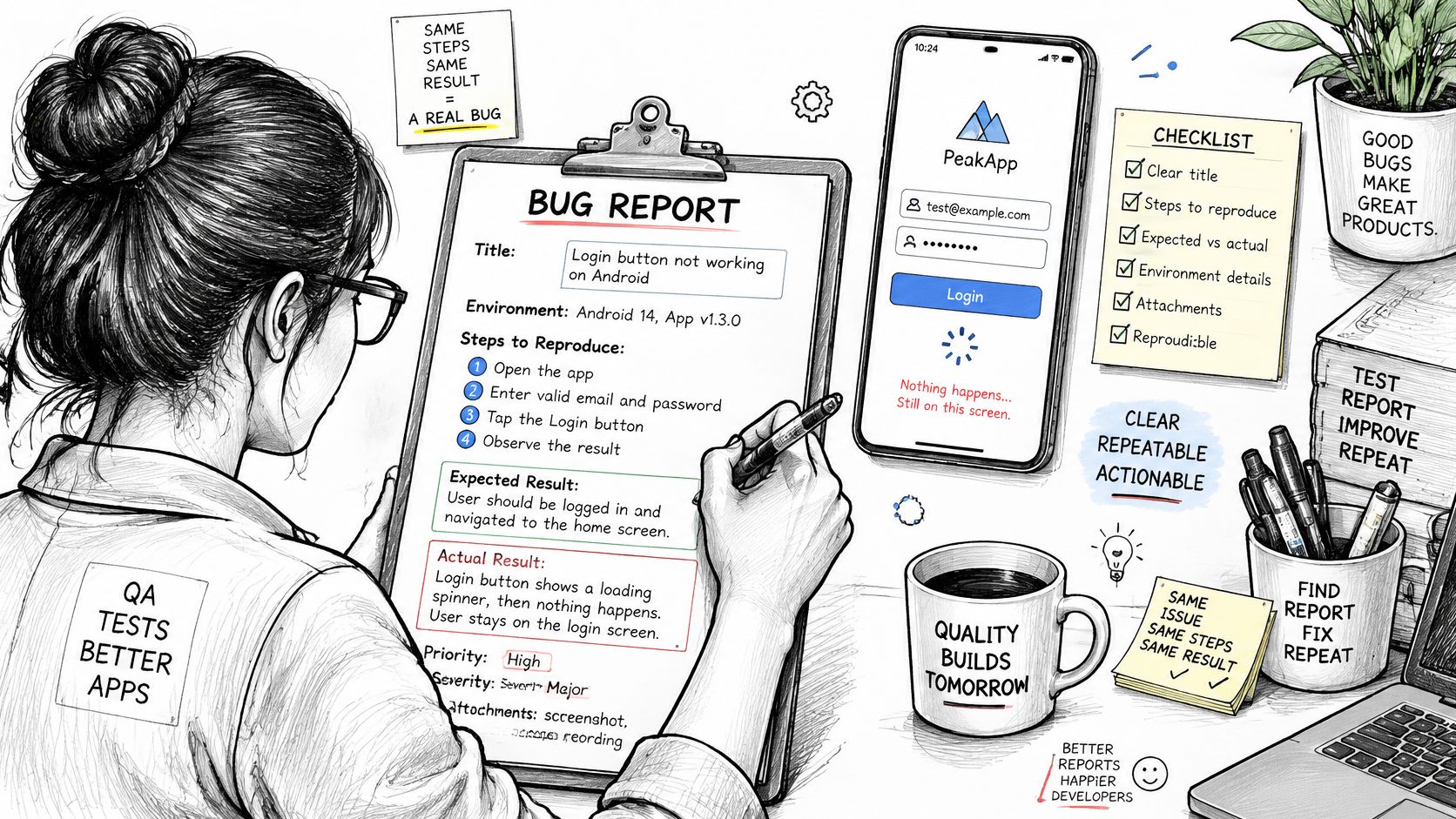
The image below shows the level of structured detail a tester should capture before handing a finding over.
The Reproduction Checklist
Write exact reproduction steps as numbered actions a stranger could follow. State expected behavior and actual behavior separately, because "it broke" doesn't say what correct looks like. Note whether it happens every time, intermittently, or only after a specific sequence such as backgrounding during upload.
- Environment block: Record device model, OS build, app version, network type, carrier or Wi-Fi condition, battery state, and timestamps.
- Visual evidence: Attach screen recordings, screenshots, console logs, and crash traces captured at the moment of failure.
- Backend hooks: Include request IDs when a failure involves a server call, so engineers can find the matching server log.
- Scope note: State whether you repeated it on the same build and whether a second device in the same OS family shows it.
Timestamps deserve more respect than they usually get. A crash trace without a time forces a developer to guess which session it belongs to. A recording paired with a request ID turns an argument into a lookup.
Keeping Severity and Duplicates Consistent
Multiple testers on multiple devices will find the same bug. That's healthy, but only if someone merges duplicates into one canonical report and preserves the extra device evidence inside it. Each additional affected model is useful data, not a new ticket.
Grade severity against a defined rubric rather than gut feeling. A cosmetic glitch on a Tier 3 tablet and a payment blocker on a Tier 1 phone shouldn't compete as equals. Agree in advance what counts as blocker, critical, major, and minor, tying the top grades to core transactions, data loss, and install or upgrade failure.
If two testers would grade the same failure differently, your rubric is too vague, and triage will waste the time your testing saved.
Review reports for completeness before they reach developers. Send back findings that lack steps, environment, or evidence, kindly but firmly. That review loop is unglamorous, and it's the difference between a bug queue engineers trust and one they ignore.
Choosing In-House Testing or a Managed Service
An in-house device lab gives you control. Devices are on your shelf, builds install in minutes, and developers can grab the exact failing handset. The costs hide elsewhere. Someone must buy, charge, update, reset, and replace phones, keep OS versions from drifting, and settle contention when two teams want the same device on release day.
Breadth is the harder problem. A lab that reflects your analytics needs budget handsets, older OS versions, and regional models, not just the flagships staff already own. Those devices age out, batteries swell, and the matrix you bought last year slowly stops matching your users.
What a Managed Option Changes
A managed crowdsourced service trades direct control for breadth and scheduling. Testers run your cases on their own equipment, on their own networks, which is often closer to production conditions than a managed lab shelf. You lose the ability to walk over and hold the device, so report quality and device verification matter more.
As a concrete example, 99tests runs crowdsourced manual testing on Android phones, iPhones, and desktop browsers using testers' own equipment. Customer test cases are converted into device-specific sessions, and reports include coverage tables, session logs, and explanations for unexecuted cases. Its fixed packages include Starter at ₹9,999 plus GST for five 45-minute sessions across two targets, Standard at ₹18,999 plus GST for ten sessions across four targets, and Deep at ₹34,999 plus GST for twenty 90-minute sessions across six targets.
- Choose in-house when: You need frequent hands-on debugging, hardware accessories, or tightly controlled environments.
- Choose managed when: You need device breadth, regional networks, or surge capacity around a release without buying phones.
- Choose a hybrid when: Core developers keep a small lab, and managed sessions cover matrix breadth each release.
Either way, judge the output, not the pitch. Ask for a sample case-by-device table, a real bug report, and an explanation of how unexecuted cases are reported. If a provider can't show those, you're buying activity, not evidence, and in-house testing with a smaller honest matrix will serve you better.
Turning the Workflow Into Your Next Release Check
The pieces connect. Your analytics-driven matrix decides where to test. The versioned smoke flow decides what to run. The case-by-device record proves what happened, and your bug reports turn failures into fixes developers can reproduce. Remove any one piece and the rest weaken. A great matrix with vague reports wastes devices, and detailed reports from the wrong devices waste effort.
Keep the workflow repeatable. When a new build arrives, rerun the same plan against it so results stay comparable across releases. Update the matrix when analytics shift, not mid-cycle on a hunch, and carry forward the residual risk statement so accepted gaps don't become permanent blind spots.
Your Next Step This Week
Don't try to perfect the whole system before your next release. Do three concrete things. First, pull your active-device data and name your Tier 1 devices. Second, write the smoke flow for those devices, including upgrade, permission denial, and one constrained-network run. Third, set the release gate in writing before testing begins, including how blocked and unrun cases will be explained.
That's a release check you can run this week with devices you already have or can borrow. How to test an app on real devices stops being guesswork the moment you can point to a matrix, a record, and a gate, and say exactly what you proved and what risk you chose to accept.
If your team needs broader device coverage for the next release, 99tests can run your test cases on real Android phones, iPhones, and desktop browsers and return verified case-by-device reports with reproducible findings and explanations for unexecuted cases. Visit the site to pick a fixed package, share your build through TestFlight, Google Play internal testing, or an APK link, and get evidence you can use at your release gate.