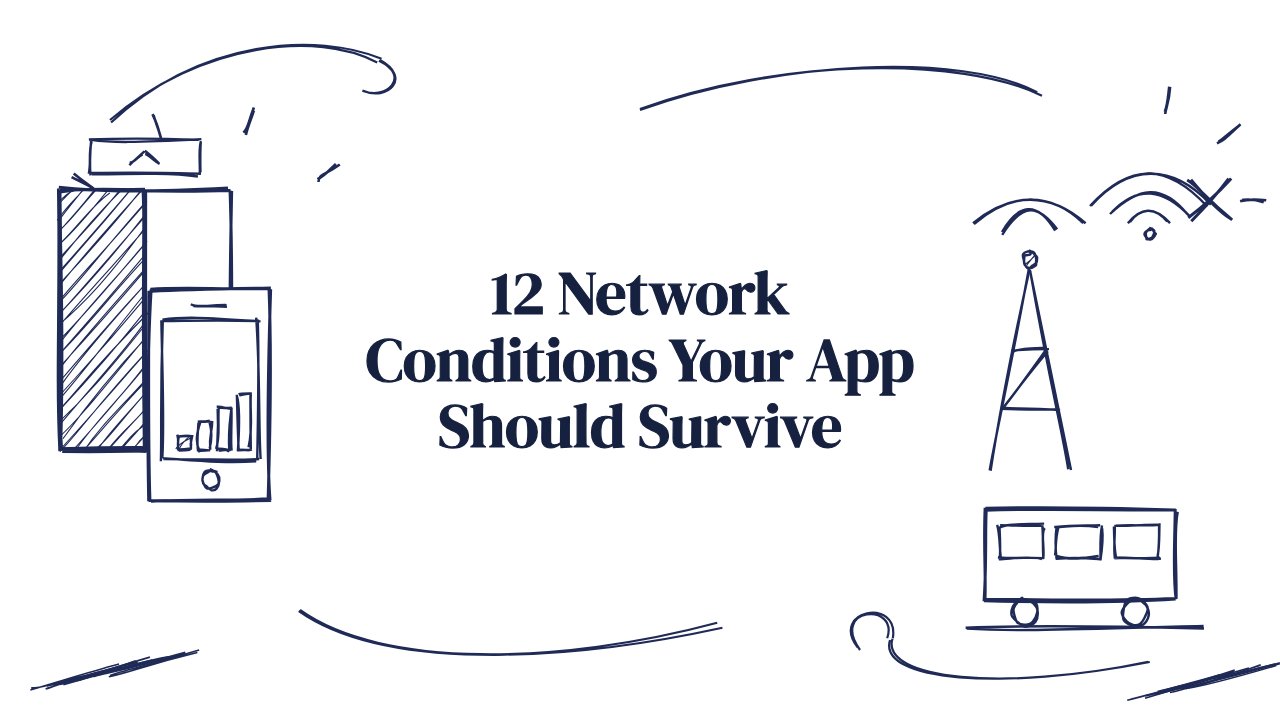
The Jio and Airtel test: 12 network conditions your app should survive in India
Lifts, metro tunnels, 2G fallback, public Wi-Fi sign-in, daily data packs and dual-SIM data switching. A 12-point network test checklist for apps used in India, with expected results.
In this article
- Before you start
- The 12 conditions
- 1. The connection drops right after a payment is authorised
- 2. Airplane mode while a form is being submitted
- 3. Double tap on a slow connection
- 4. Retry after a timeout when the server already got the order
- 5. Wi-Fi hands over to mobile data mid-request
- 6. Switching the data SIM on a dual-SIM phone
- 7. A lift or metro tunnel while a screen loads
- 8. A real 2G signal
- 9. The daily data pack has run out
- 10. Public Wi-Fi with an unfinished sign-in page
- 11. Wi-Fi connected but no internet
- 12. A voice call on a phone without VoLTE
- The quick version
- Two fixes that prevent most of these bugs
- Why throttling tools aren't enough
- Run the checklist on real networks
Your app was built on office Wi-Fi. Your users open it in a lift, on a metro, at a railway station's free Wi-Fi, or at 11 pm after the day's data pack ran out. In India these are everyday conditions, and they show up in reviews as "app not working", "payment stuck" and "order placed twice".
Here are 12 network conditions to test before every release that touches login, payments or orders. Each one says how to set it up and what the app should do. They come from the offline and poor network flow in our free test case library, which has 39 cases in all.
Before you start
You'll need:
- an Android phone and an iPhone, including a budget Android with 3–4 GB of RAM
- a dual-SIM phone with active Jio, Airtel or Vi SIMs
- a Wi-Fi router you control, and a network throttling tool or a hotspot you can slow down
- test accounts and sandbox payments you can repeat safely
- someone who can check order and payment records on the backend
The 12 conditions
1. The connection drops right after a payment is authorised
Set up: start a sandbox payment, enter the PIN or OTP, then turn on airplane mode before the result screen appears. Wait a minute and reconnect.
Expected: the app shows the payment as pending or checks its status. It never shows Failed while the money has been debited, and the final status matches the account statement.
2. Airplane mode while a form is being submitted
Set up: fill a form that creates something, such as a booking or an address. Tap Submit and immediately turn on airplane mode.
Expected: the app says the result is unknown or failed and offers a safe retry. After reconnecting, exactly one booking exists.
3. Double tap on a slow connection
Set up: throttle the network, fill an order form and tap Submit twice quickly.
Expected: the button is disabled or shows progress after the first tap. Only one order is created.
4. Retry after a timeout when the server already got the order
Set up: throttle the network so responses take longer than the app's timeout. Place an order, wait for the timeout message and tap Retry.
Expected: one order, charged once. The app shows it as placed instead of creating a second one.
5. Wi-Fi hands over to mobile data mid-request
Set up: start a slow upload or order on Wi-Fi and walk out of range so the phone moves to 4G.
Expected: the request finishes over mobile data, or fails with a clear Retry that doesn't create a duplicate. This one needs a real phone with a SIM.
6. Switching the data SIM on a dual-SIM phone
Set up: with Wi-Fi off, use data on SIM 1, start loading a screen, then switch mobile data to SIM 2 in Settings.
Expected: after a short pause the app reconnects over SIM 2. It doesn't stay stuck on an offline banner until restarted.
7. A lift or metro tunnel while a screen loads
Set up: start loading a heavy screen, such as order tracking or a statement, and step into a lift or a metro section with no signal. Come out after a minute.
Expected: an offline message while signal is lost, then the screen loads without a restart. Real dead zones drop and restore signal unevenly, which emulators don't reproduce.
8. A real 2G signal
Set up: set the preferred network type to 2G on an Airtel or Vi SIM, where allowed. Log in and complete one key action.
Expected: both finish, even if slowly, with progress shown. Anything that can't load shows a message and Retry, not a blank page.
9. The daily data pack has run out
Set up: use a prepaid SIM whose daily pack is used up, so the carrier has slowed the speed. Load the home screen and complete one key action.
Expected: text and buttons load before images, and the key action completes or fails clearly. No offline banner appears while data is still flowing.
10. Public Wi-Fi with an unfinished sign-in page
Set up: connect to a railway station or airport hotspot without signing in, turn mobile data off and open the app.
Expected: the app says the network needs sign-in, not a server error, and never shows the hotspot's page inside its own screens. After sign-in it loads normally.
11. Wi-Fi connected but no internet
Set up: connect to a router whose internet line is unplugged, with mobile data off.
Expected: after the request timeout the app shows a no-internet message with Retry. It doesn't spin forever just because Wi-Fi shows as connected.
12. A voice call on a phone without VoLTE
Set up: turn off VoLTE for an Airtel or Vi SIM, start a request, then take a call on that SIM for a minute.
Expected: while data pauses during the call, the app shows a waiting or offline state and doesn't crash. Afterwards the request completes or offers Retry.
The quick version
| # | Condition | The app should |
|---|---|---|
| 1 | Drop after payment authorised | Show pending, never Failed while debited |
| 2 | Airplane mode on submit | Offer a safe retry; one booking only |
| 3 | Double tap, slow network | Create one order |
| 4 | Retry after timeout | Charge once, show the existing order |
| 5 | Wi-Fi to 4G handover | Finish or retry without duplicates |
| 6 | Data SIM switch | Reconnect without a restart |
| 7 | Lift or tunnel | Show offline, then recover |
| 8 | Real 2G | Finish slowly, with progress |
| 9 | Data pack used up | Text first, clear failures |
| 10 | Wi-Fi sign-in page | Say sign-in is needed |
| 11 | Wi-Fi with no internet | Time out with Retry |
| 12 | Call without VoLTE | Wait, don't crash |
Two fixes that prevent most of these bugs
- Make every request that creates something safe to repeat. Disable the button after the first tap, and send a unique reference with each request so the server can recognise a repeat. Duplicate orders and double payments mostly come from this.
- Check before you retry. When a response is lost, ask the server for the status of the original request before offering a fresh attempt. Never show Failed for money until you know.
Why throttling tools aren't enough
The Android emulator and the iPhone's developer network conditioner can slow the connection and add delay. That covers most loading and timeout checks, so use them. But real carrier networks also lose packets and change speed unevenly, and handovers, SIM switches, hotspot sign-in pages and VoLTE pauses only happen on a real phone with a real SIM. For a fuller breakdown, read emulator vs real device: the bugs only a real phone shows.
Run the checklist on real networks
99tests testers run your network cases on their own phones and SIMs, on Jio, Airtel and Vi, and every finding comes with the network it happened on. Packages start at ₹9,999 + GST, with a verified report in 3 business days.